Video background changer for product clips

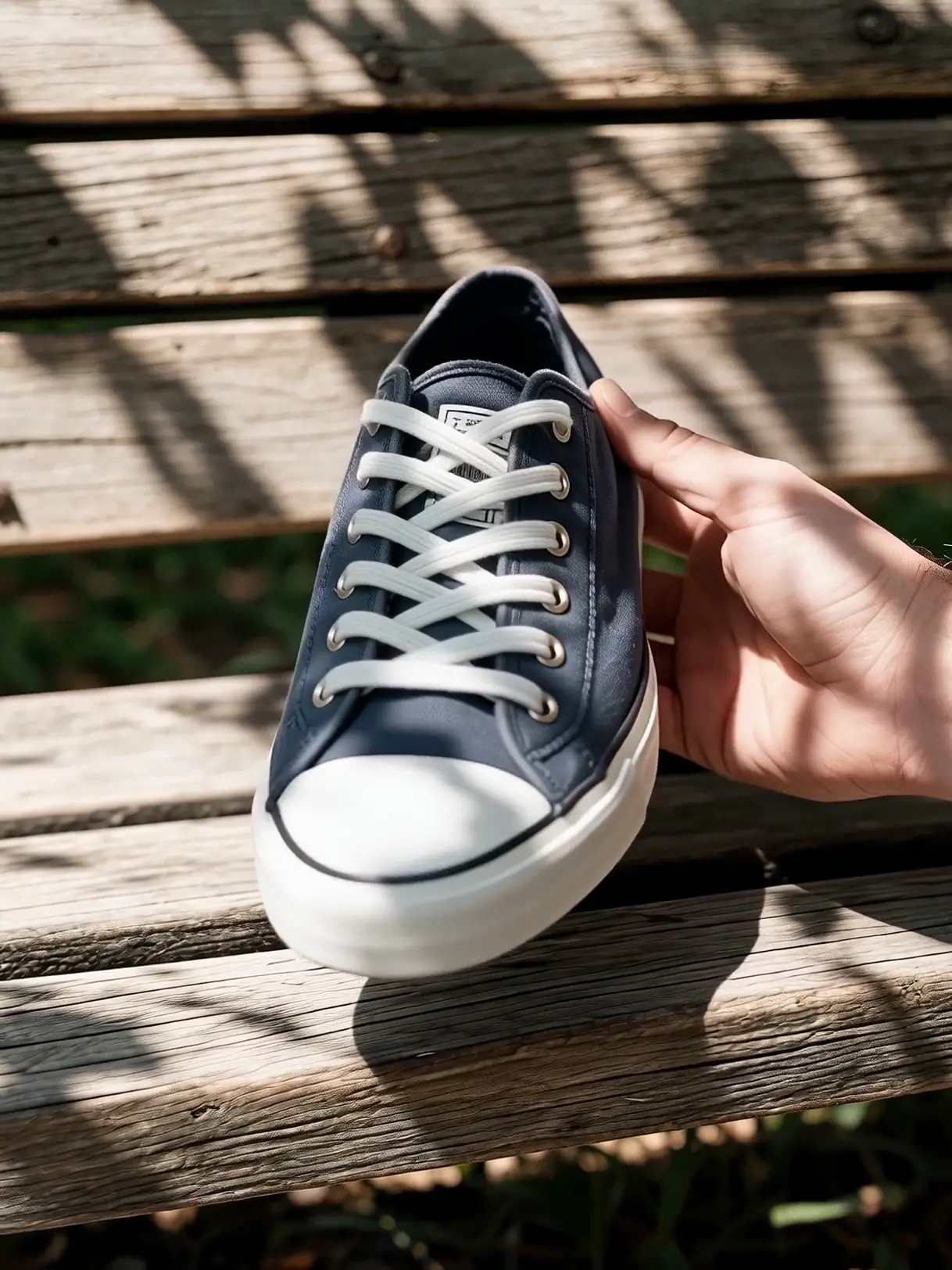
A hand turning a canvas sneaker, after the Change set edit
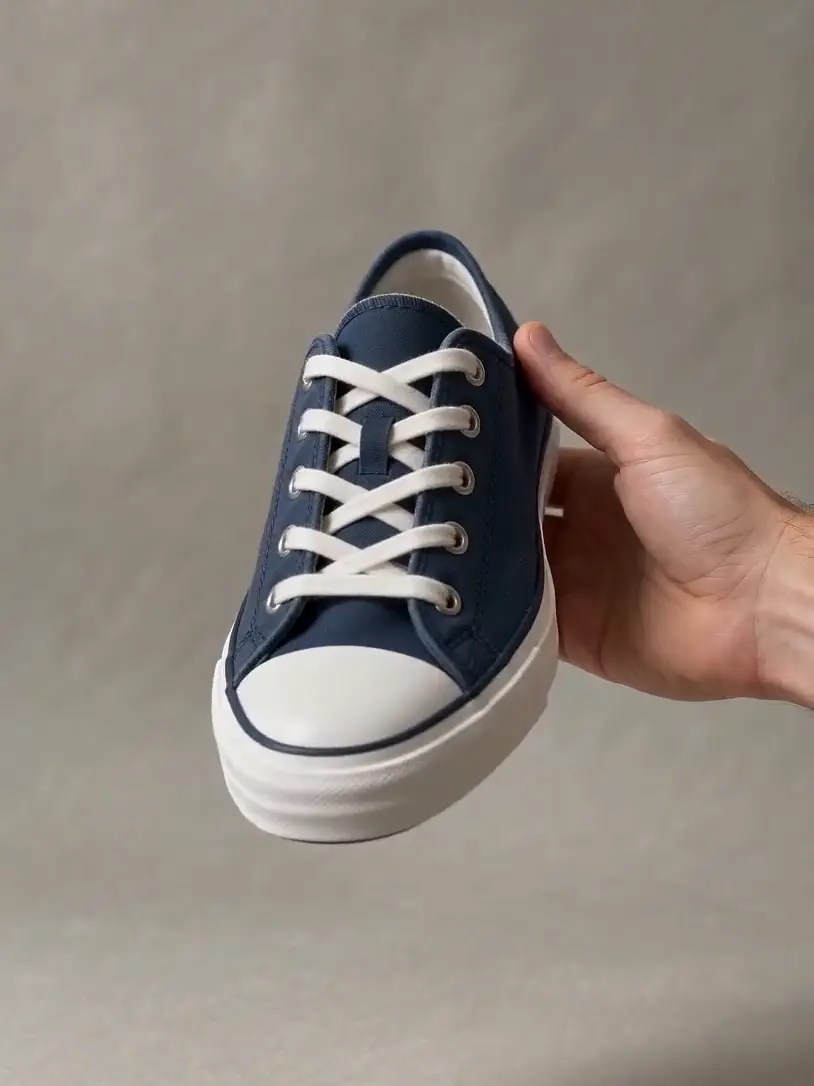
A hand turning a canvas sneaker, original shot
OriginalEdited
Change set: sunlit park bench
Change set · sunlit park bench

Drop a clip to edit

MP4 or MOV, up to 95 MB. Edits take 3 to 10 seconds; you trim the part next.

Task

Pick a set

JPG, PNG or WebP, at least 300 px a side, up to 10 MB.

Quality

Output

Point at the product if the shot holds more than one. People in the clip stay as they are.

Sign up for 28 free credits

28 credits once after you confirm your email: one preview frame of your clip.

This video background changer moves your product to a new set without a reshoot. Upload a short clip of the product on your desk, in a hand or on a shelf, trim the 3 to 10 seconds you want and choose Change set. Then pick a preset set, such as a white studio sweep, a marble vanity or a café table, or add a photo of a set of your own. The setting around the product changes in every frame, with shadows and reflections to match, while the product, the hands holding it and the camera move stay as you filmed them. A preview frame shows the new set on one still before you pay for the video.

Updated

How it works

  1. 1

    Upload and trim the take

    Drop an MP4 or MOV of up to 95 MB. Trim it to the 3 to 10 seconds that show the product best, and crop to 9:16, 1:1 or 16:9 for the marketplace you sell on. Trimming, cropping and muting are free.

  2. 2

    Pick a set and preview it

    Choose Change set, then one of the eight preset sets or a photo of your own backdrop. Add a short note if you want something specific, like "warm morning light". Check the preview frame before you render.

  3. 3

    Render and compare

    Pick Standard or HD and 720p or 1080p; the credits for your trim show before you start. Drag the divider over the finished clip to compare the old set and the new one, then download the MP4.

Good for

  • Listing clips filmed on a kitchen table that should look like a studio
  • Seasonal versions of one take: a gift-wrap table for the holidays
  • Matching every product video in a shop to one house set
  • Testing which background sells better before booking a shoot
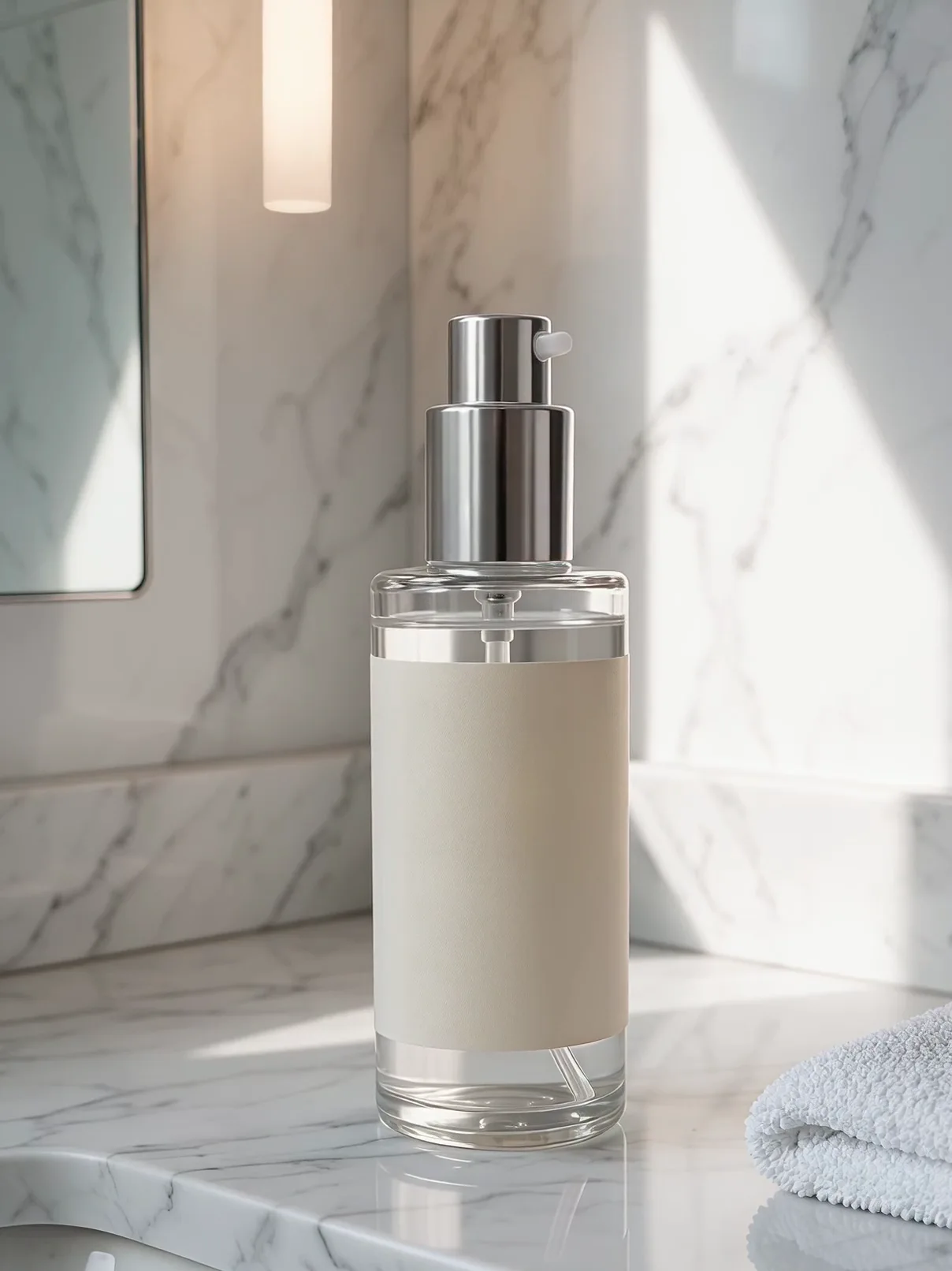
Fingertips turning a glass pump bottle on a table, after the Change set edit
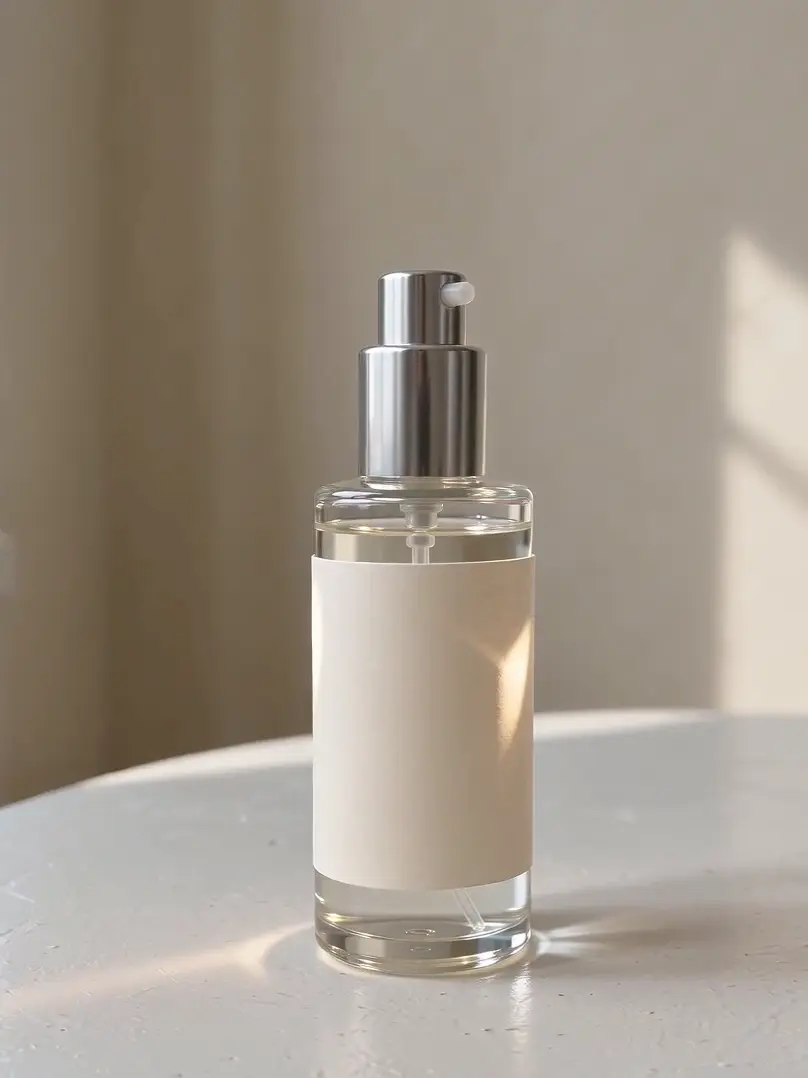
Fingertips turning a glass pump bottle on a table, original shot
OriginalEdited
Change set: marble bathroom vanity
Change set · marble bathroom vanity

01

Change the background of a video without masking

Most ways to change the background of a video ask you to cut the subject out first: a green screen, a rotoscope mask or a background remover that only knows how to find people. A product clip rarely has any of those. Here you describe the new set instead, and the edit model rebuilds the scene around the product, so the shadow under a bottle lands on the new counter and the reflection in a glossy box shows the new room. There is no mask to draw and no transparent file to composite later.

02

Eight preset sets, or your own photo

The presets cover the settings sellers ask for most: a white studio sweep, a light oak kitchen counter, a marble bathroom vanity, a café table by a window, a tiled bathroom shelf, a tidy work desk, an outdoor park bench and a festive gift-wrap table. Each one comes with a lighting brief so the product looks like it was filmed there. If none of them fits your brand, upload a photo of your own set, showroom or shop counter and the clip takes that setting instead.

03

What stays the same, and what to check

Every set change is told to keep the product, its label, its position and its motion, plus any hands holding it, exactly as filmed. Results still vary: a very busy set can pull attention from the product, and a set with light coming from the other side can look staged. That is why the preview frame comes first. People in the clip are never changed, and the background changer will not remove logos or watermarks. For close-ups of glass, metal or glossy packaging, the HD quality keeps reflections cleaner.

Credits per render

Credit packs start at $19.09 and the largest plan is $494.90 a year; the total for your trimmed clip shows on the render button before anything runs. Plans and credit packs

Credits per job by quality
JobCreditsModel
Preview frame (one still)28Nano Banana 2.1
Standard render, 720p100 per secondWan 2.7 VideoEdit
Standard render, 1080p119 per secondWan 2.7 VideoEdit
HD render, 720p298 per secondHappyHorse 1.0
HD render, 1080p510 per secondHappyHorse 1.0

Questions

Is this a video background remover?

No. It does not cut the product out onto a transparent or green background. It replaces the setting around the product with a new one in the same clip, so you get a finished video rather than a layer to composite.

Can I use a photo of my own background?

Yes. Instead of a preset, add a JPG, PNG or WebP photo of your set, showroom or counter, at least 300 pixels on each side. Photos with people or faces in them are refused.

Does the product change too?

It should not. The edit is told to keep the product, its label, colours and motion exactly as filmed. If the preview frame shows the product drifting, try a plainer set or the HD quality before you render.

How long can the clip be?

Each render takes 3 to 10 seconds that you trim from your upload, and at least 3 seconds are billed. For a longer ad, change the set on each shot and join them in your editor.

What if the render fails?

The credits for that render go back to your balance automatically, and you see a short reason so you can try again with another trim or set.